Messaging
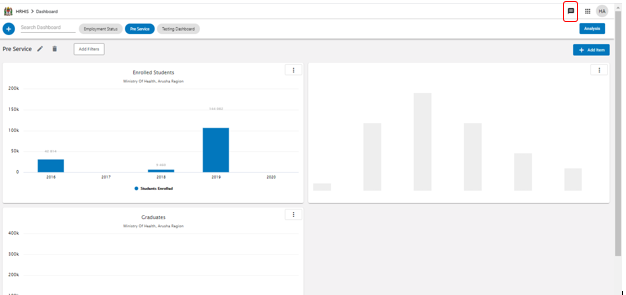
The messaging module facilitates communication between system users and system administrators. It also enhances better user support. To use the meassaging application, click on the message icon at the top right hand side of the tool bar as indicated below.
Composing a new message#
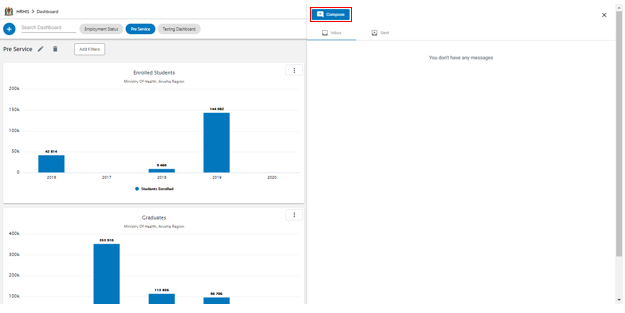
To compose a new message click on the Compose button at the top of the messaging app interface.
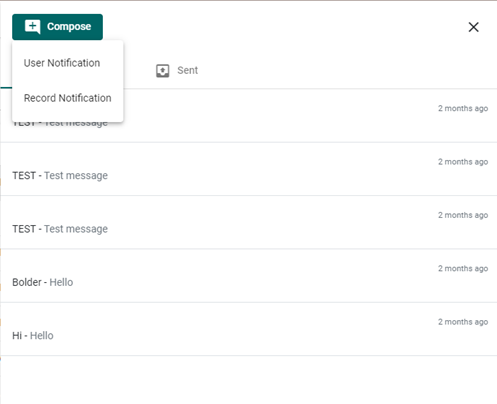
Two options will be displayed in a dropdown from which you will be required to select the type of message you are intending to send.
i. User notification
ii. Record notification
The process to complete and send a message differs a little bit depending on the selected message type. The steps and actions to be followed in accomplishing each process are explained below.
User notification#
Upon selection of this option a new user notification form will appear with entry fields divided into five sections. Users, Modes, Message details and message.
- In users section, You are required to select the users to whom the message is intended.
- In Modes section, You are required to select the message delivery mode i.e. the message can be delivered as a notification, feedback, SMS or via Email.
- In message details, you are required to type a title/subject for the message.
- In message section, you are required to type the message that you intend to send to other users to read.
After filling all fields in new notification message form accodingly and click the button captioned 'Send' located at the bottom right hand siode of the form as indicated below.
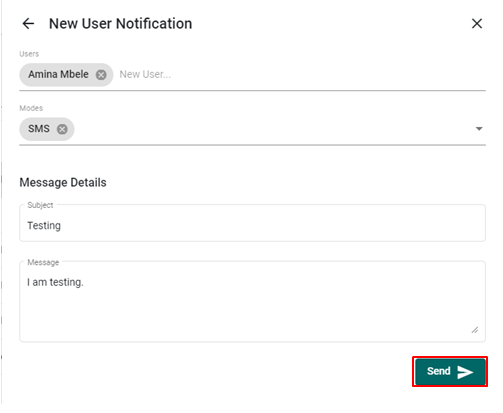
After clicking the send button, your message will be delivered to the selected users as required.
Record notification#
Upon selection of this option, New Record notification form will be opened with an organization unit tree.
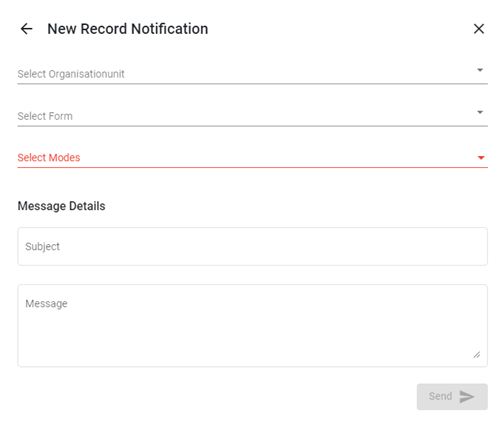
To create a record notification message, follow the steps below.
- Select an organization unit from the organization unit tree.
- Select a form from the list of forms available.
- Select message mode
- Fill message details
- Write message.
- Click the 'Send' button.
Inbox#
Here you can see all messages sent to a user from other users or from the system administrator. All messages received in the respective user's account will be displayed in a list. To view details of the message simply click on it from the list and more details about the message will be displayed.
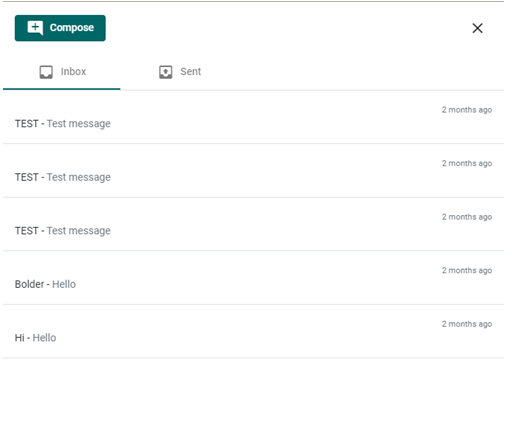
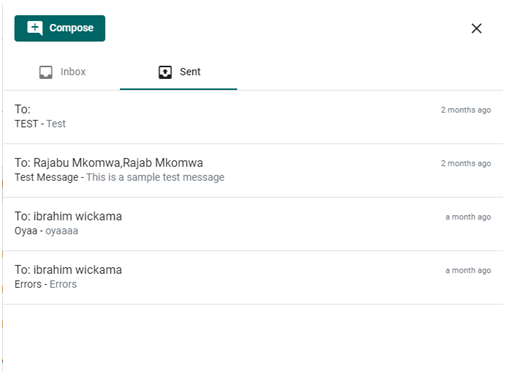
Sent box#
Messages sent from a respective user's account are displayed here. To view more details on a message simply click on the message from the list and more details about it will be displayed.