Report Module
This module analyses healthworker data for user to understand the trend of health workers in the country so as to take necessary decisions and actions for improvements as required.
Accessing Reports App#
To access report application do the following:
1.Select report app from application menu
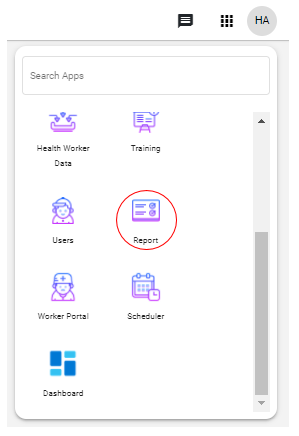
The report window will open up to allow a user to specify the kind of report they want to access as indicated below.
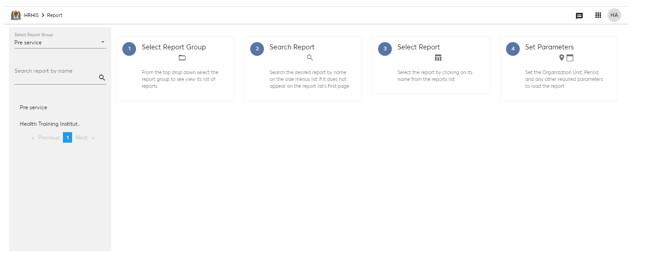
The reports module has four major report groups
A. Metrics Reports
B. Pre-Service
C. Training
B. Employee Reports
A. Metrics Reports#
Reports under this category give user infrormation concerning updates/changes done on health worker data in pre-defined time periods. Under this report category, there are seven reports as explained below
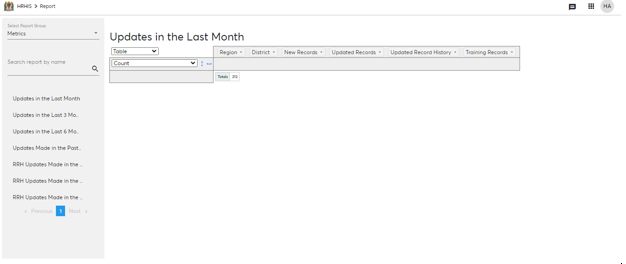
i. Updates in the Last Month
This report shows number of health worker records that have ben updated in the last month. To view this report
- In the 'select reports group tab', select 'Metrics'.
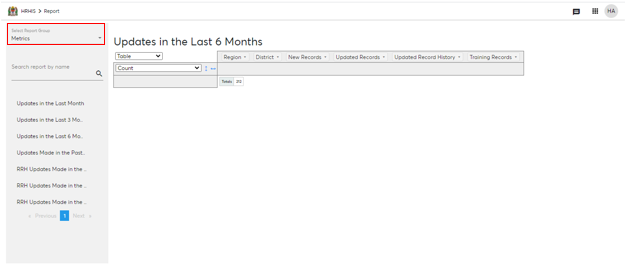
List of reports in the Metrics reports category will be displayed
From the list of reports under this group select 'Updates in the Last Month'
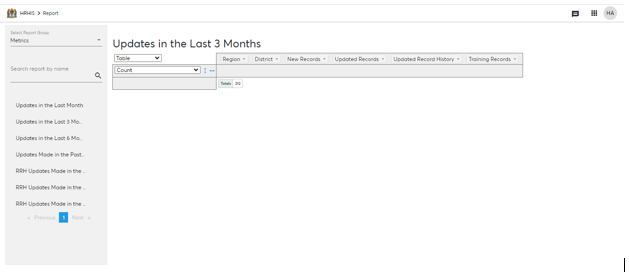
ii. Updates in the Last 3 Month
This report shows number of health worker records that have been updated in the last three months. To view this report
- In the 'select reports group tab', select 'Metrics'.
List of reports in the Metrics reports category will be displayed
- From the list of reports under this group select 'Updates in the Last 3 Month'
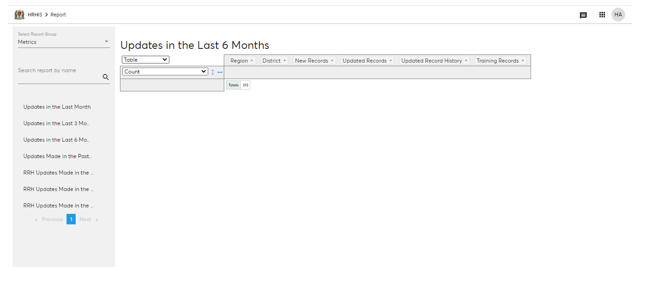
iii. Updates in the Last 6 Month
This report shows number of health worker records that have ben updated in the last six months. To view this report
- In the 'select reports group tab', select 'Metrics'.
List of reports in the Metrics reports category will be displayed
From the list of reports under this group select 'Updates in the Last 6 Month'
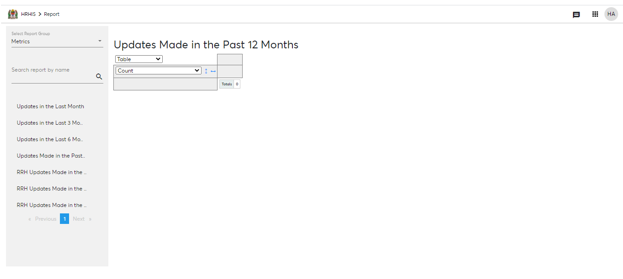
iv. Updates Made in the Past 12 Months
This report shows number of health worker records that have ben updated in the last twelve month. To view this report
- In the 'select reports group tab', select 'Metrics'.
List of reports in the Metrics reports category will be displayed
- From the list of reports under this group select 'Updates in the Last 12 Month'
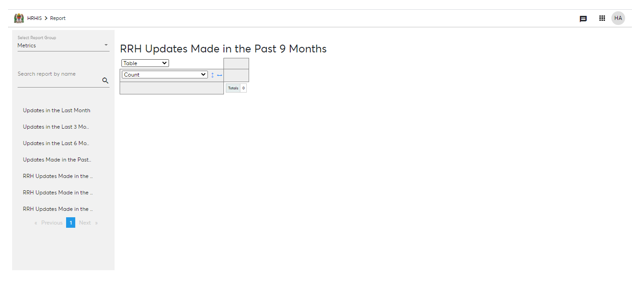
v. RRH Updates Made in the Past 9 Months
This report shows number of health worker records that have ben updated in the last nine month. To view this report
- In the 'select reports group tab', select 'Metrics'.
List of reports in the Metrics reports category will be displayed
- From the list of reports under this group select 'Updates in the Last 9 Months'
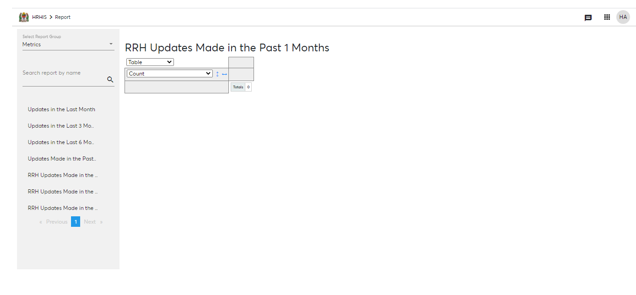
vi. RRH Updates Made in the Past 1 Months
This report shows number of health worker records that have been updated in the last month. To view this report
In the 'select reports group tab', select 'Metrics'.
List of reports in the Metrics reports category will be displayed
From the list of reports under this group select 'RRH Updates Made in the Past 1 Month'
vii. RRH Updates Made in the Past 3 Months
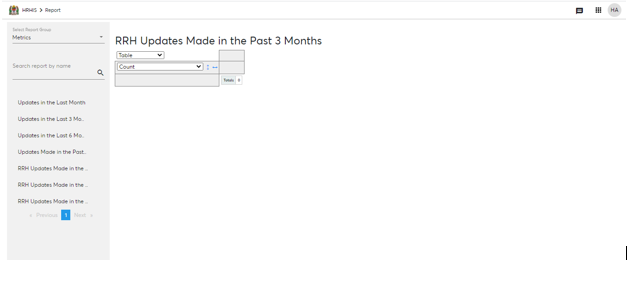
This report shows number of health worker records that have been updated in the last month. To view this report
- In the 'select reports group tab', select 'Metrics'.
List of reports in the Metrics reports category will be displayed
- From the list of reports under this group select 'RRH Updates Made in the Past 3 Months'
B. Pre-Service Reports#
These reports give information of students in the health sector and Institutions that are dedicated to health training. Under this report category, ther are two reports as explained below
i. Pre service
This report gives infromation of all enrolled students in different health training institutions. To open and view this report follow the steps below.
- From the 'Select report group' tab, select 'Pre-service'
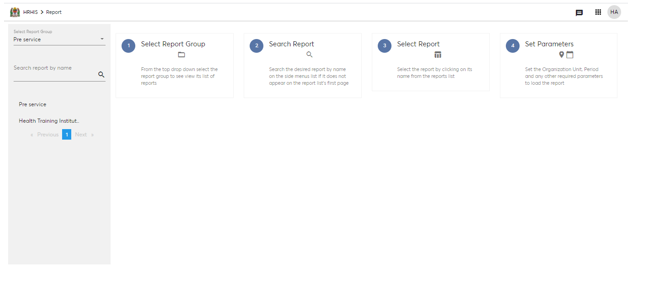
From the list of Pre-service reports, select 'Pre-service'
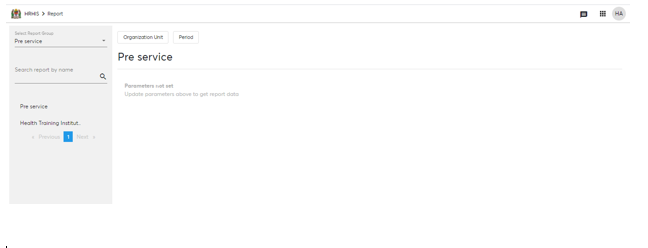
Click 'organization unit' to specify the organization unit for which Pre-service report needs to be viewed
Click 'Period' to select the period for which the report needs to be viewed
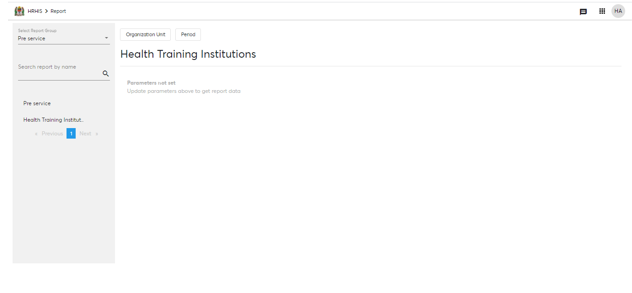
ii. Health Training Institutions
This report provides detailed information of registered health trainning institutions in the country. To view this report follow the steps below.
- From the 'Select report group tab', select 'Pre-service'
- From the list of Pre-service reports, select 'Health Training Institutions'
C. Trainning Reports#
This reports show information of health workers who attended sessions. Under this report category, there is only one report
i. CPD Points by curriculumn This report
D. Employee Reports#
Reports in this category provide information of health workers employed in different health cadres. Under this report category, there are three reports
i. Number of Employees per cadre
This reports shows the number of employees employeed per each cadre.
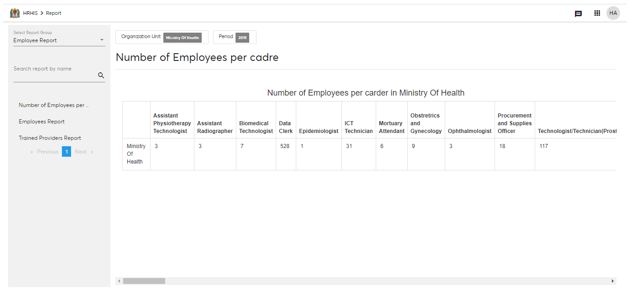
More details of the employees employed per each cadre can be viewed by clicking on the number below the respective cadre.
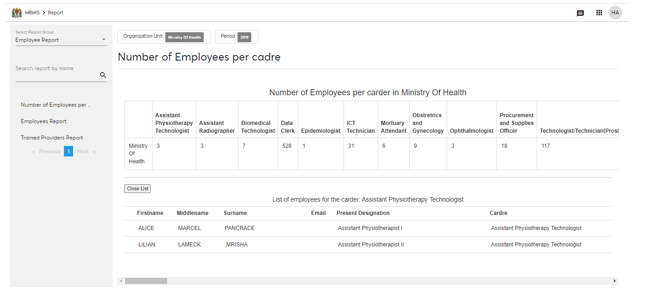
ii. Employees Report This report provides details of employees in different health cadres.
iii. Trained Providers Report
This report shows the number of employees who have undergone training in health cadres.