User Module
All user management activities in HRHIS are performed using Users app. These activities include user account creation,disabling user accounts as well as granting and revoking user roles and authorities. To access and use the user module the following steps have to be followed:
- Go to application menu and select User application

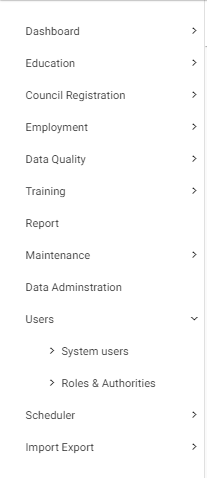
- Click on Users, Users module will expand as shown below with two sections below i.e. System users and Roles & Authorities.
Creating a new user#
To create a new user follow the steps below
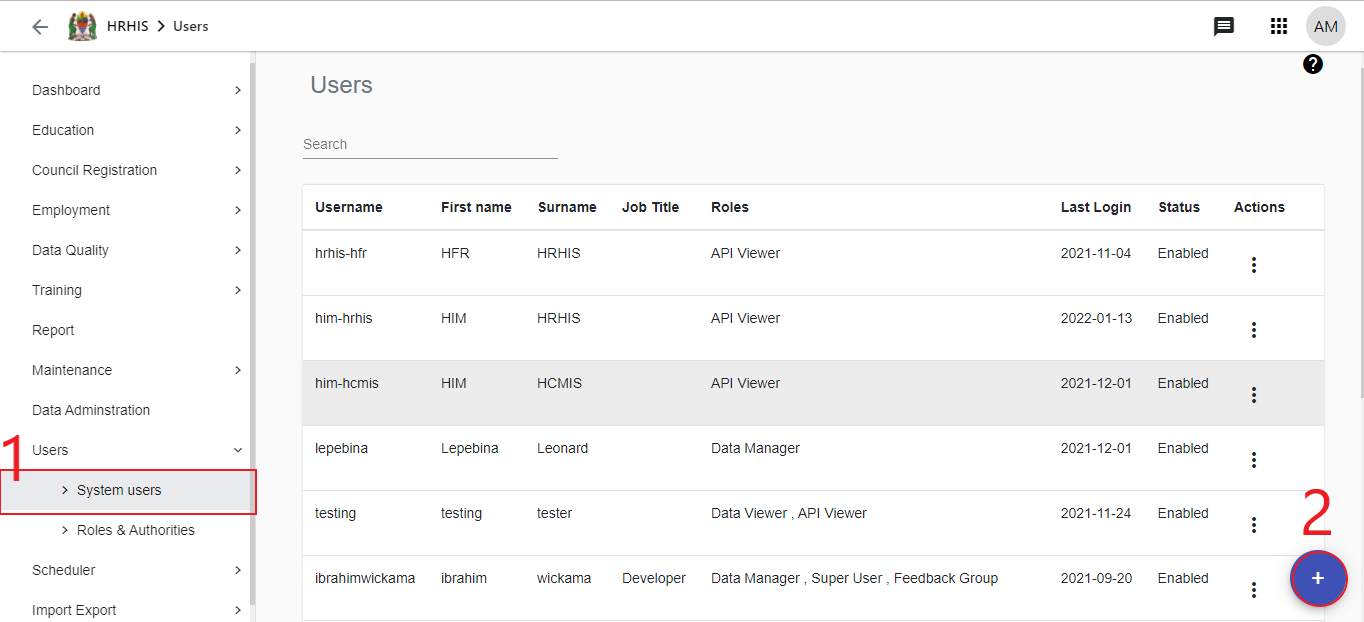
Click on system users from user module options to view list of availble system users, then click the plus buttom located at the bottom of the page as shown below.
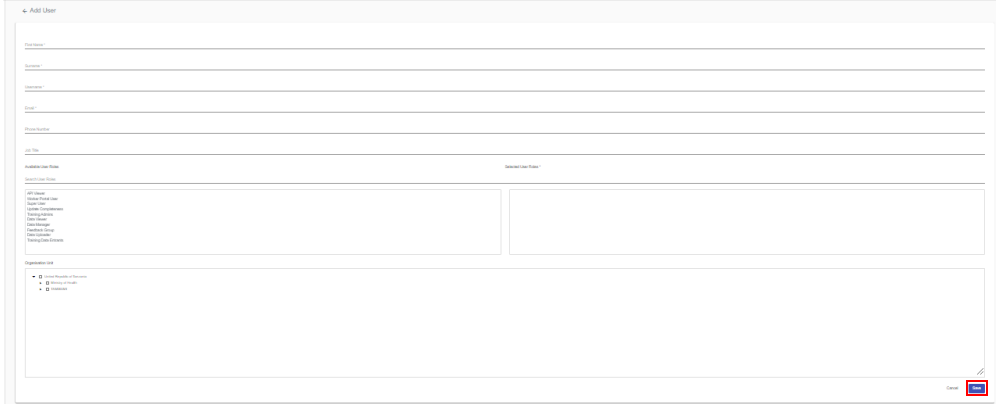
A new form for adding user details will open up as indicated below.

Fill in all the user's details and assign appropriate user roles and organisation unit
Click the save button at the bottom right hand side of the form to save the user account.
Viewing Existing Users#
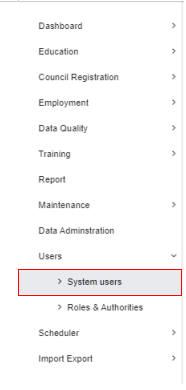
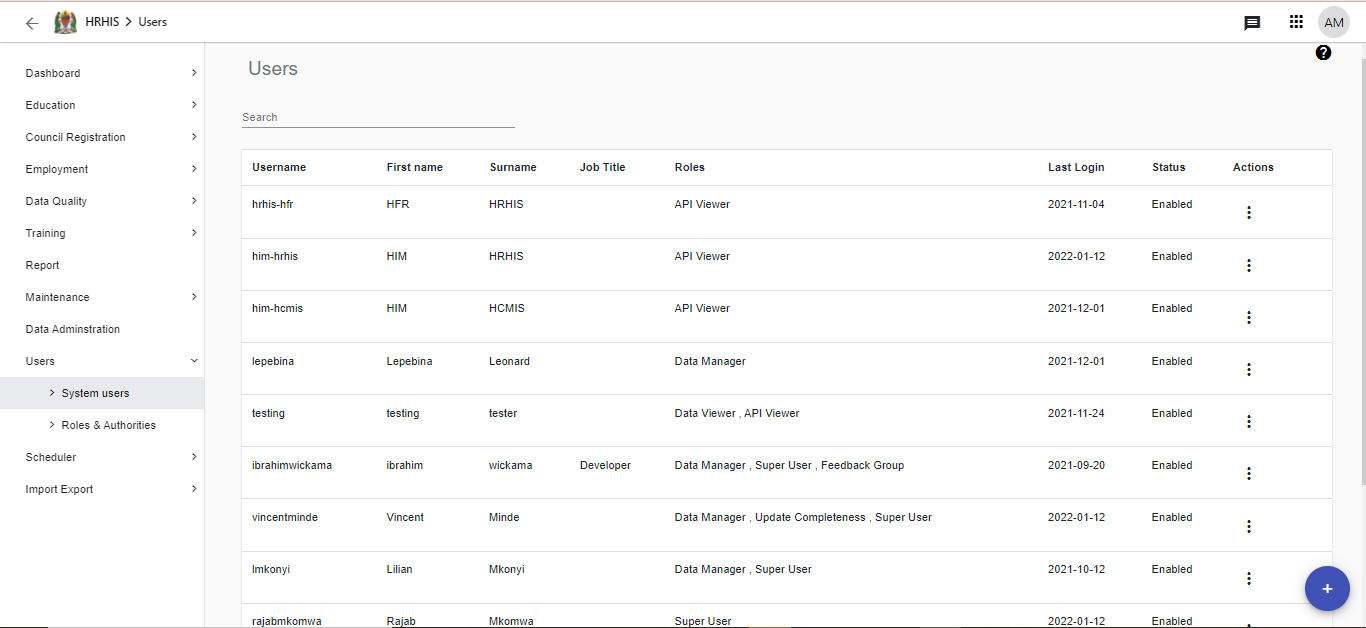
Click on icon on the bottom left of user menu as shown below below to view the list of system users. A list of user accounts and their respective details will be displayed as indicated below.
Users window will display a list of user accounts and their respective details.
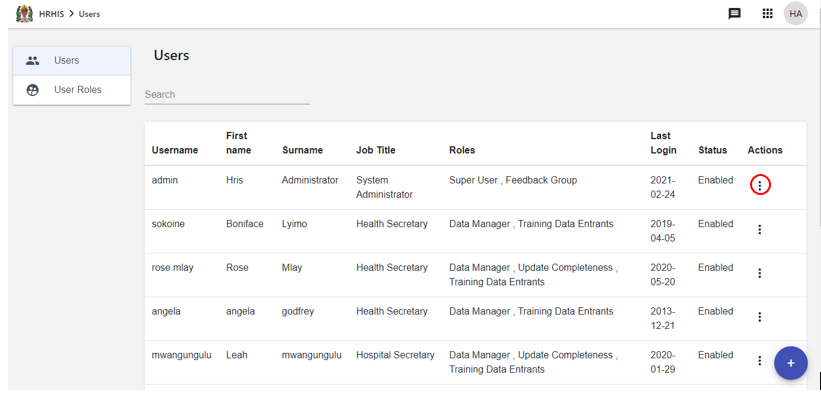
Click on the three dots on the far right hand side of any row to view various actions that may be performed on a selected user account as indicated below.
Editing user details#
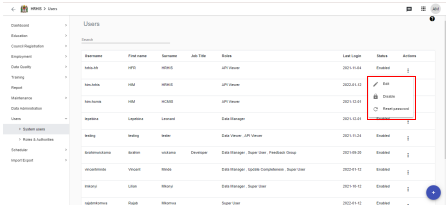
- Select Edit option from the submenu list as seen below.
User form will open with respective details prefilled.
Add/change user details in the form.
click the Save button at the bottom right hand side of the form to save the new details.
Disabling user accounts:
- Select Disable from among options as seen in the Figure below,
Select the reason for disabling the user account.
Click the Confirm button to confirm disabling the selected user account. The user status will change to disabled.
Self Registration#
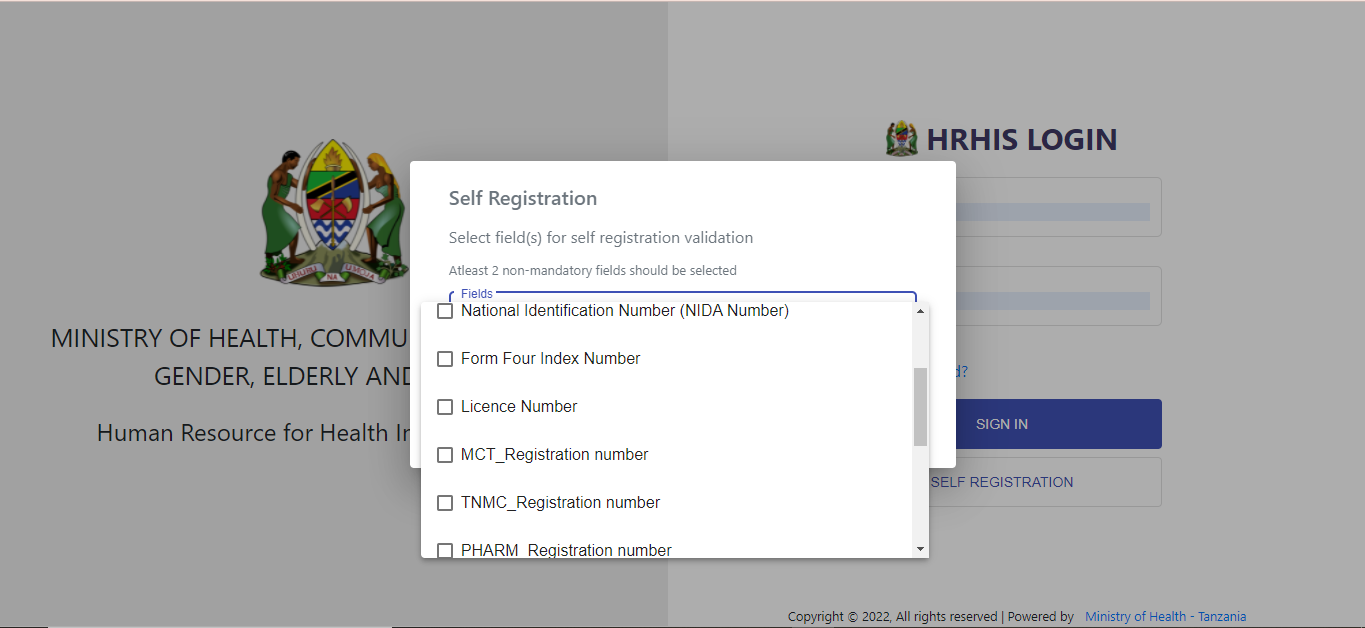
Employees with records in the system can become system users through self registration. For this to be possible a self registration user should have an email assoociated with his/her information in the system and either of the following unique identifiers,
- National identification number(NIN)
- Council registration number
- HFR registration number
- License number
The self registration link is available via login page of HRHIS. To perform self registration follow the steps below.
- On the login screen click the self registration button as shown below
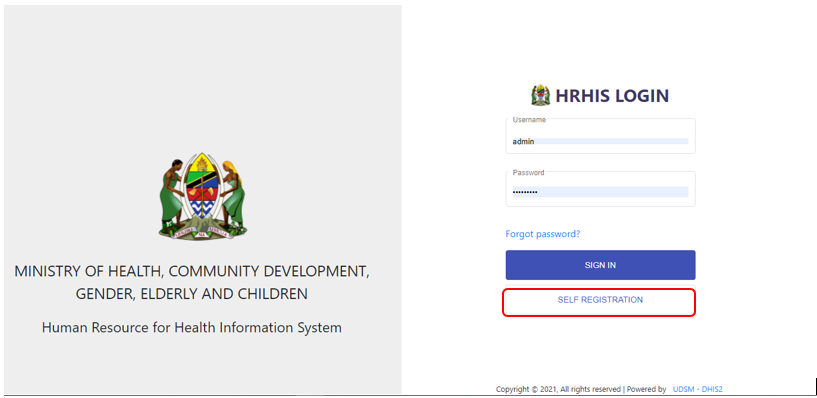
A new self registration form will open up as observed in Figure below.
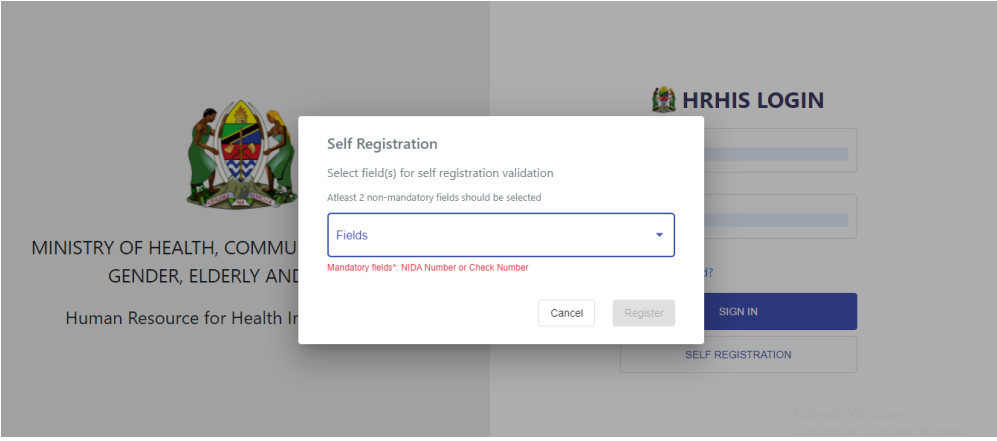
- Select the type of unique identifier to be used for self registration and then click outside the self registration form.
- Fill unique identifier as required.
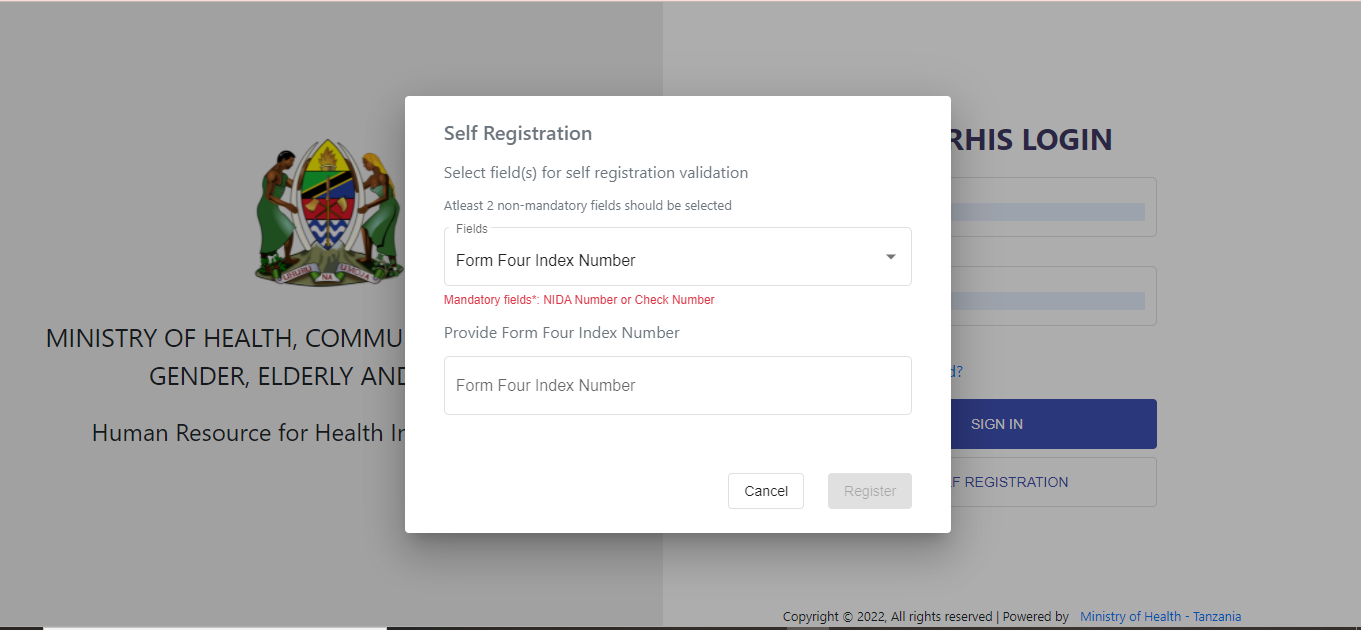
- Click the register button to complete self registration.
After following all the steps above, an email with user name and activation link will be sent to the respective user's email address. The activation link should be used within an hour to create a password. After one hour, the link expires.
After successful creation of password a new user can login to the system by providing correct username and password.